> ## Documentation Index
> Fetch the complete documentation index at: https://pipedream.com/docs/llms.txt
> Use this file to discover all available pages before exploring further.
# ServiceNow
Since ServiceNow requires OAuth configuration in your instance, **you need to manually configure two OAuth apps in your ServiceNow instance** to grant access tokens and authenticate requests to the REST API.
Please follow the steps below to set up the required OAuth applications.
## Create External Client OAuth App
Sign into your [ServiceNow Developer Portal](https://developer.servicenow.com/dev.do#!/home) account to create or access an instance.
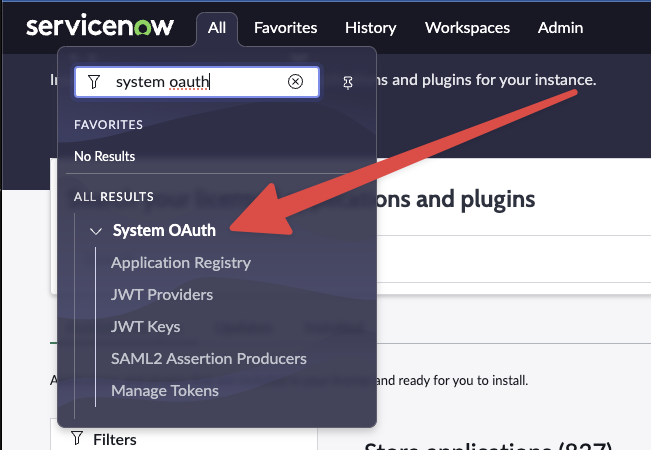
Go to **System OAuth > Application Registry**.
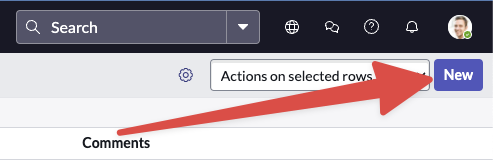
Create a new app by selecting **New** in the top right corner.
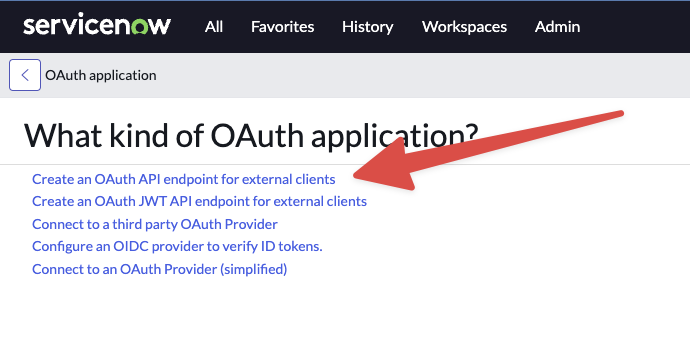
Choose **Create an OAuth API endpoint for external clients**.
Name your app `Pipedream`. Use the default settings but specify the **Redirect URL**:
```text theme={null}
https://api.pipedream.com/connect/oauth/oa_g2oiqA/callback
```
Click **Create**. The app will appear in the Application Registry once created.

## Create OAuth Validator App
Copy the client ID and secret from the `Pipedream` app you created above.
Go back to **System OAuth > Application Registry > New** and select **Connect to an OAuth Provider (simplified)**.
Name this app `Pipedream OAuth Validator` and add the previously copied client ID and secret.
Set the grant type to **Authorization Code** and the **Token URL** to `oauth_token.do`.
Use the same **Redirect URL** as before:
```text theme={null}
https://api.pipedream.com/connect/oauth/oa_g2oiqA/callback
```
## Connect to Pipedream
Visit [Pipedream's account page](https://pipedream.com/accounts), and click **Click Here to Connect An App**.
Search for **ServiceNow** and select it.
Enter the client ID, client secret, and your instance name (e.g., `dev98042` from `https://dev98042.service-now.com/`).
Press **Connect**. A new window will prompt you to login to your ServiceNow instance, authorizing Pipedream's access to the ServiceNow REST API.
## Troubleshooting
**For Hardened or Mature Instances**: The standard instructions may not apply perfectly to customized or hardened ServiceNow instances. If you face a **504 Gateway Time-out** error or similar issues, consider these additional steps:
* Assign a dedicated role and service account for this integration
* Ensure the role has ACLs configured for the `oauth_credential` table and other necessary tables
For detailed authorization flow reference, see [ServiceNow's OAuth documentation](https://docs.servicenow.com/bundle/orlando-platform-administration/page/administer/security/concept/c_OAuthAuthorizationCodeFlow.html).