> ## Documentation Index
> Fetch the complete documentation index at: https://pipedream.com/docs/llms.txt
> Use this file to discover all available pages before exploring further.
# Access Controls
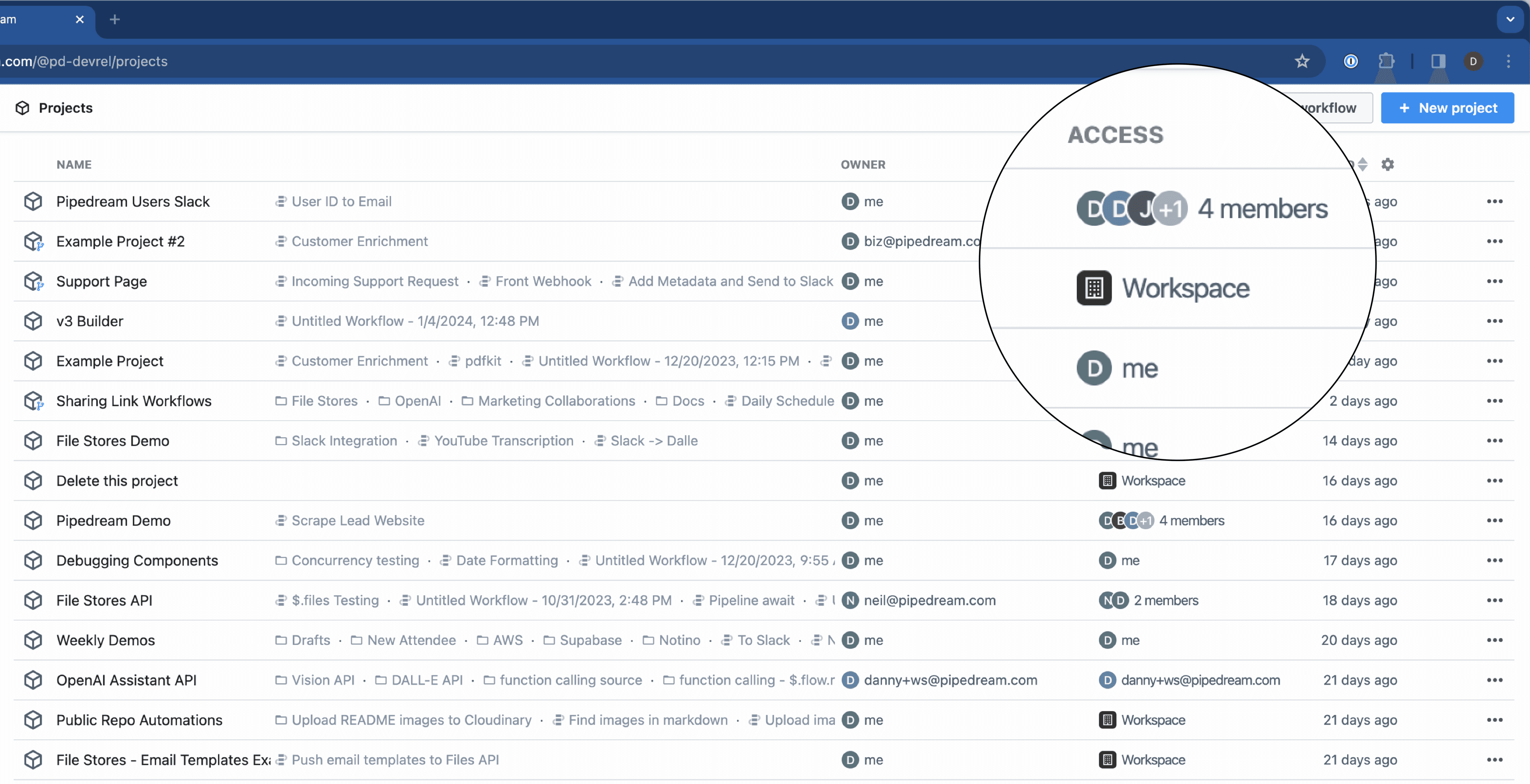
The [projects list view](https://pipedream.com/projects) contains **Owner** and **Access** columns.
**Owner** indicates who within the workspace owns each project. This is typically the person who created the project.
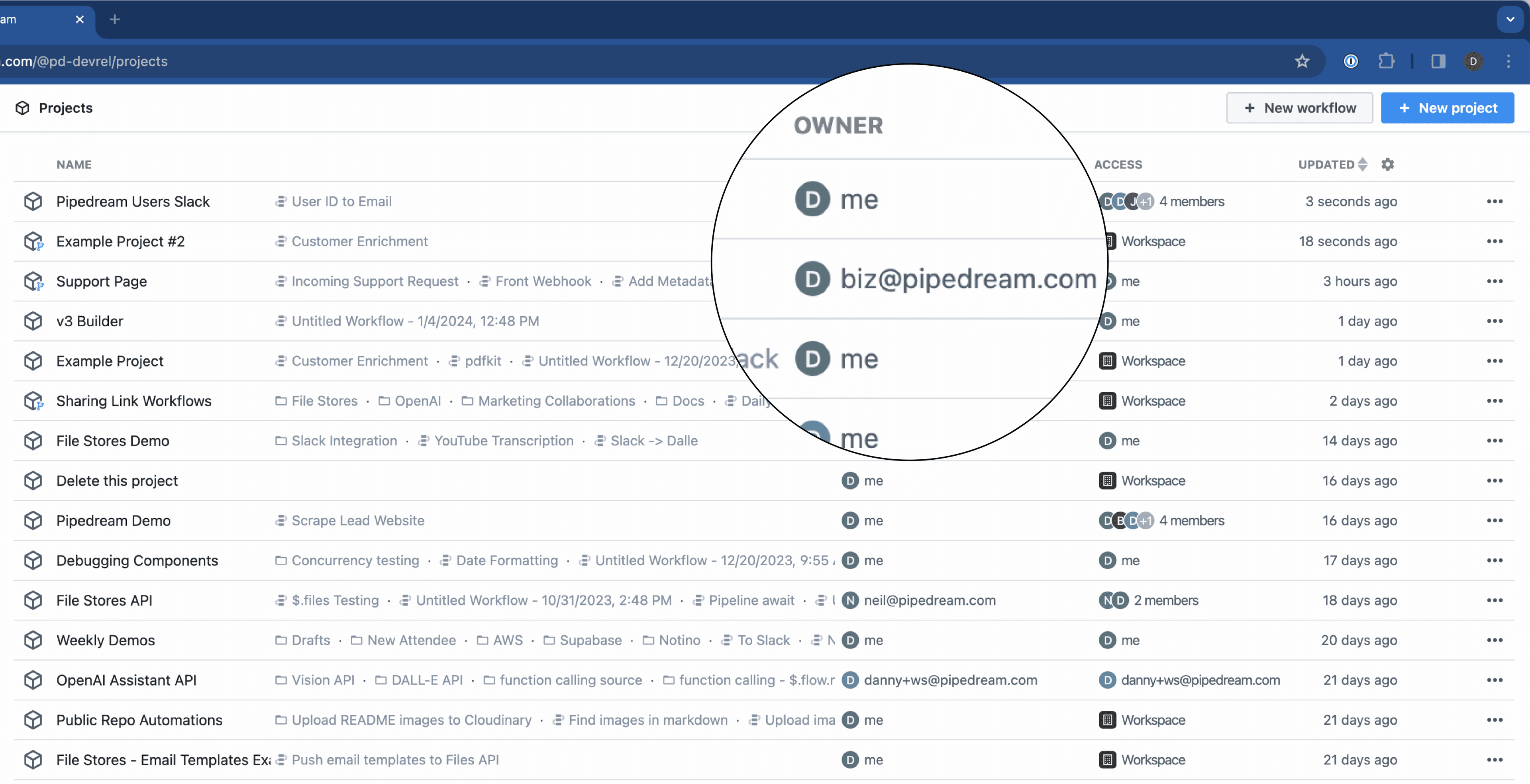 Projects created before February 2024 don’t automatically have owners, which has no functional impact.
**Access** indicates which workspace members have access to each project, and this can be displayed as “me”, “Workspace”, or “N members”.
Projects created before February 2024 don’t automatically have owners, which has no functional impact.
**Access** indicates which workspace members have access to each project, and this can be displayed as “me”, “Workspace”, or “N members”.
 ## Permissions
Workspace owners and admins are able to perform all actions in projects, whereas workspace members are restricted from performing certain actions in projects.
| Operation | Project creator | Workspace members |
| ------------------------------------------------------------ | --------------- | ----------------- |
| View in [projects listing](https://pipedream.com/projects) | ✅ | ✅ |
| View in [Event History](https://pipedream.com/event-history) | ✅ | ✅ |
| View in global search | ✅ | ✅ |
| Manage project workflows | ✅ | ✅ |
| Manage project files | ✅ | ✅ |
| Manage project variables | ✅ | ✅ |
| Manage member access | ✅ | ❌ |
| Manage GitHub Sync settings | ✅ | ❌ |
| Delete project | ✅ | ❌ |
**Workspace admins and owners have the same permissions as project creators for all projects in the workspace.**
## Managing access
By default, all projects are accessible to all workspace members. Workspaces on the [Business plan](https://pipedream.com/pricing) can restrict access for individual projects to specific workspace members.
You can easily modify the access rules for a project directly from the [project list view](https://pipedream.com/projects), either by clicking the access badge in the project row (fig 1) or clicking the 3 dots to open the action menu, then selecting **Manage Access** (fig 2).
Via the access badge (fig 1):
## Permissions
Workspace owners and admins are able to perform all actions in projects, whereas workspace members are restricted from performing certain actions in projects.
| Operation | Project creator | Workspace members |
| ------------------------------------------------------------ | --------------- | ----------------- |
| View in [projects listing](https://pipedream.com/projects) | ✅ | ✅ |
| View in [Event History](https://pipedream.com/event-history) | ✅ | ✅ |
| View in global search | ✅ | ✅ |
| Manage project workflows | ✅ | ✅ |
| Manage project files | ✅ | ✅ |
| Manage project variables | ✅ | ✅ |
| Manage member access | ✅ | ❌ |
| Manage GitHub Sync settings | ✅ | ❌ |
| Delete project | ✅ | ❌ |
**Workspace admins and owners have the same permissions as project creators for all projects in the workspace.**
## Managing access
By default, all projects are accessible to all workspace members. Workspaces on the [Business plan](https://pipedream.com/pricing) can restrict access for individual projects to specific workspace members.
You can easily modify the access rules for a project directly from the [project list view](https://pipedream.com/projects), either by clicking the access badge in the project row (fig 1) or clicking the 3 dots to open the action menu, then selecting **Manage Access** (fig 2).
Via the access badge (fig 1):
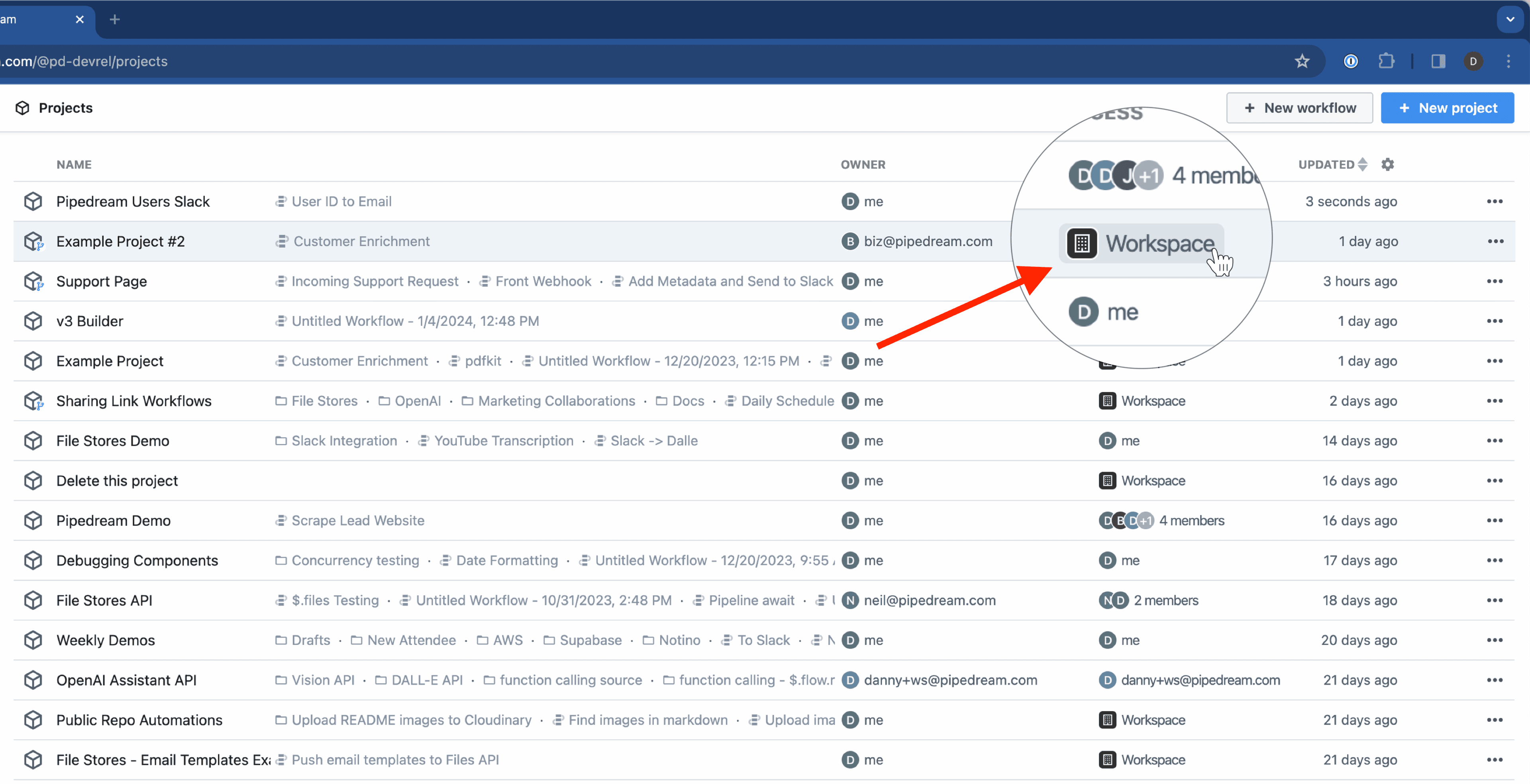 Via the action menu (fig 2):
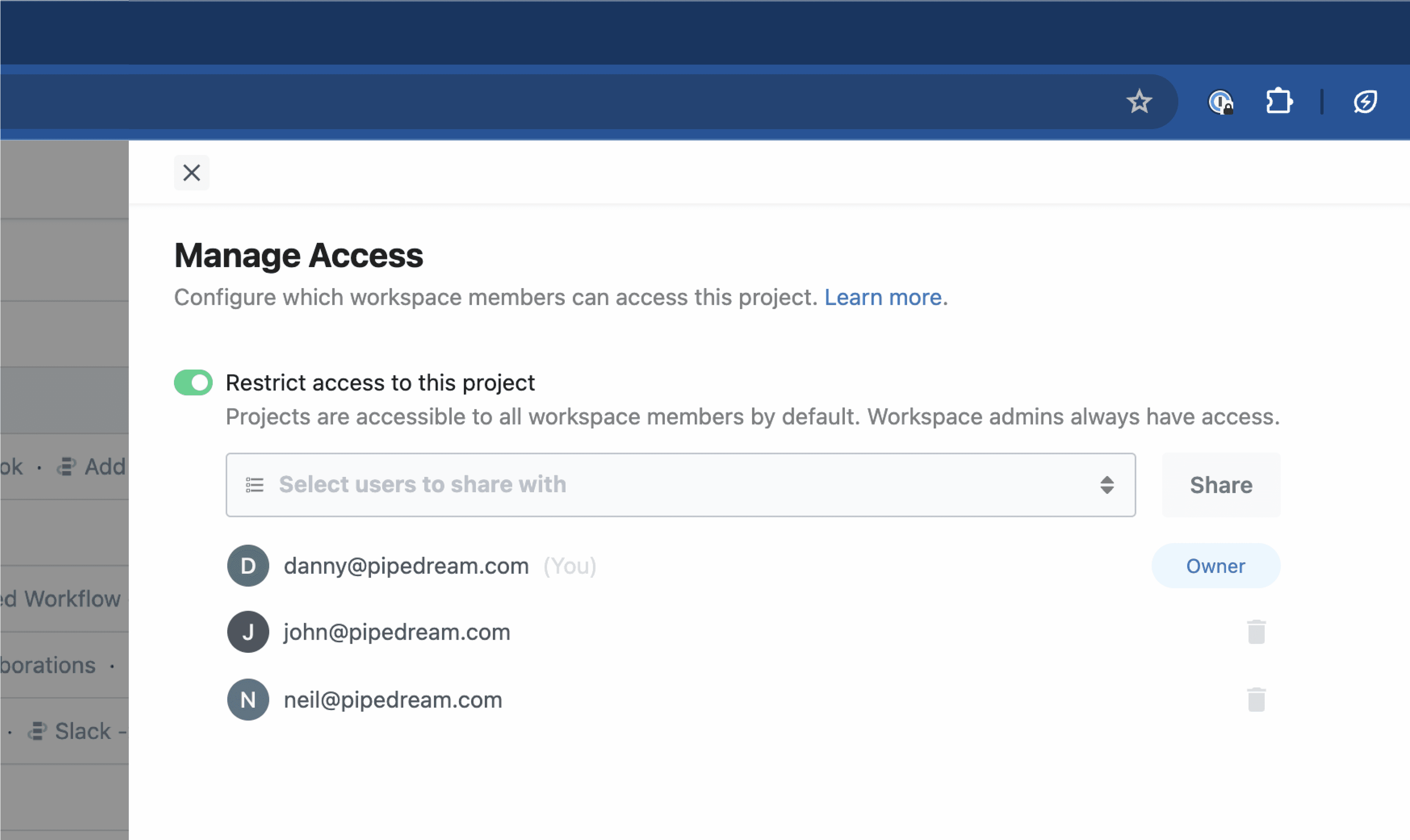
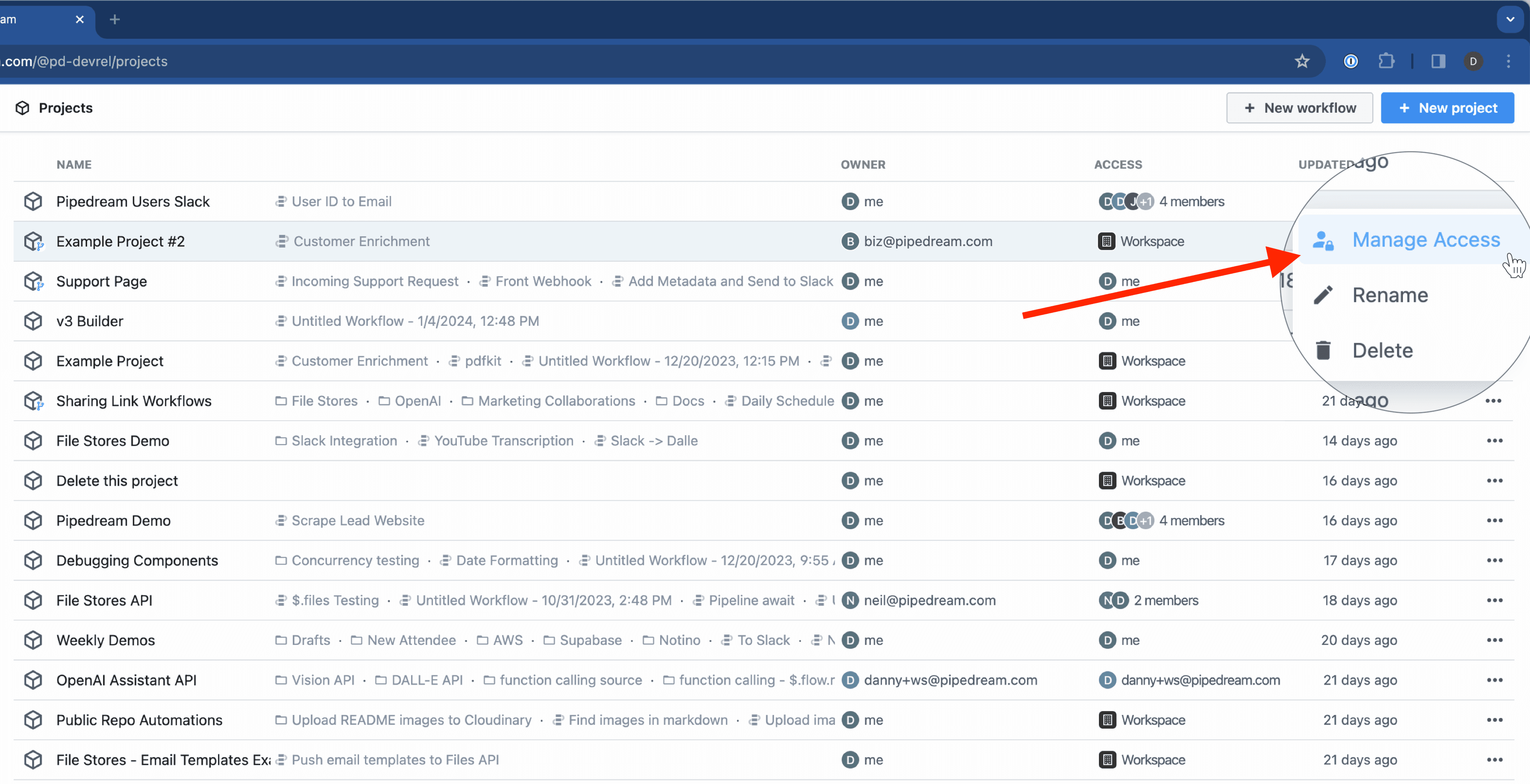 From here, a slideout drawer reveals the access management configuration:
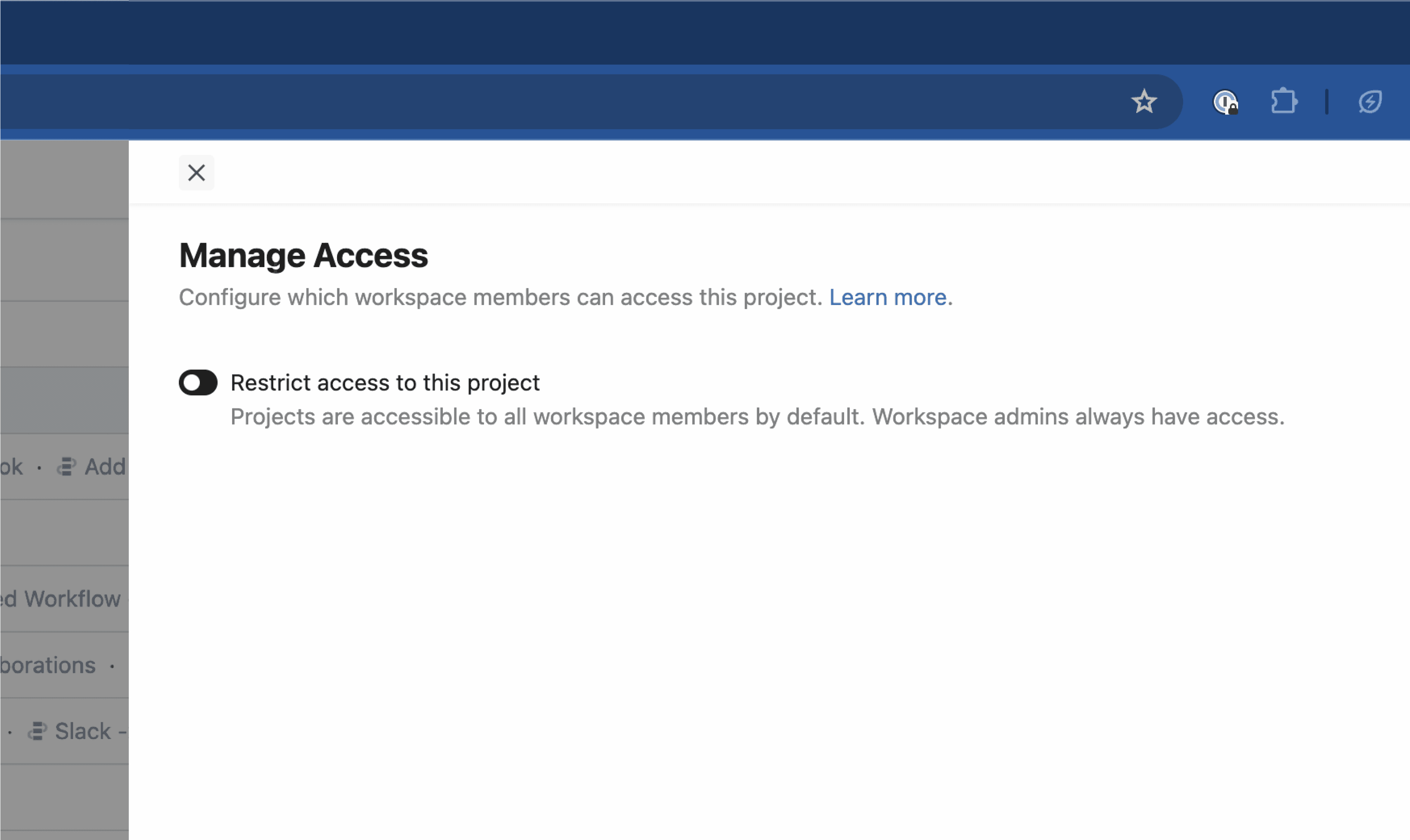 Toggle the **Restrict access to this project** switch to manage access:
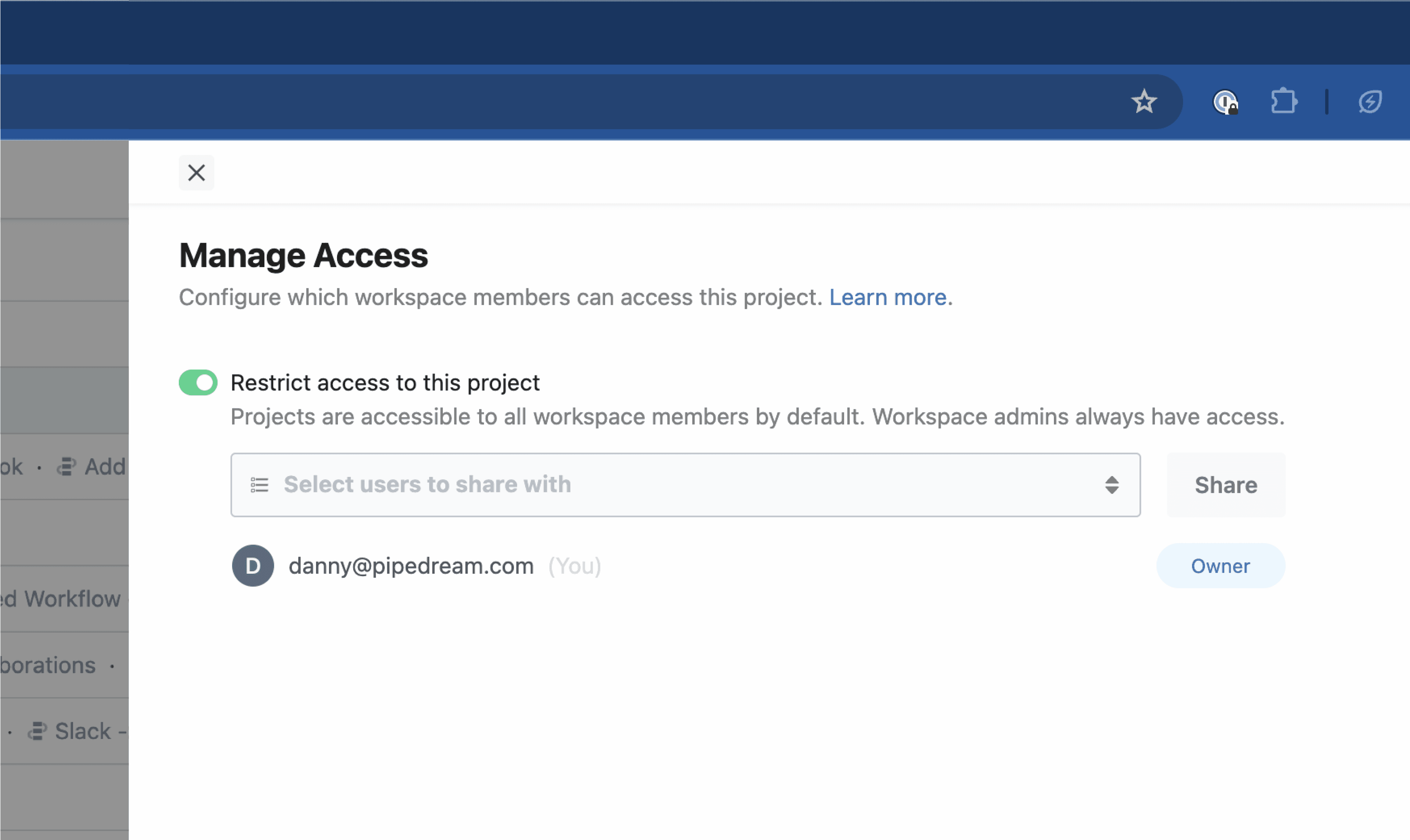 Select specific members of the workspace to grant access:
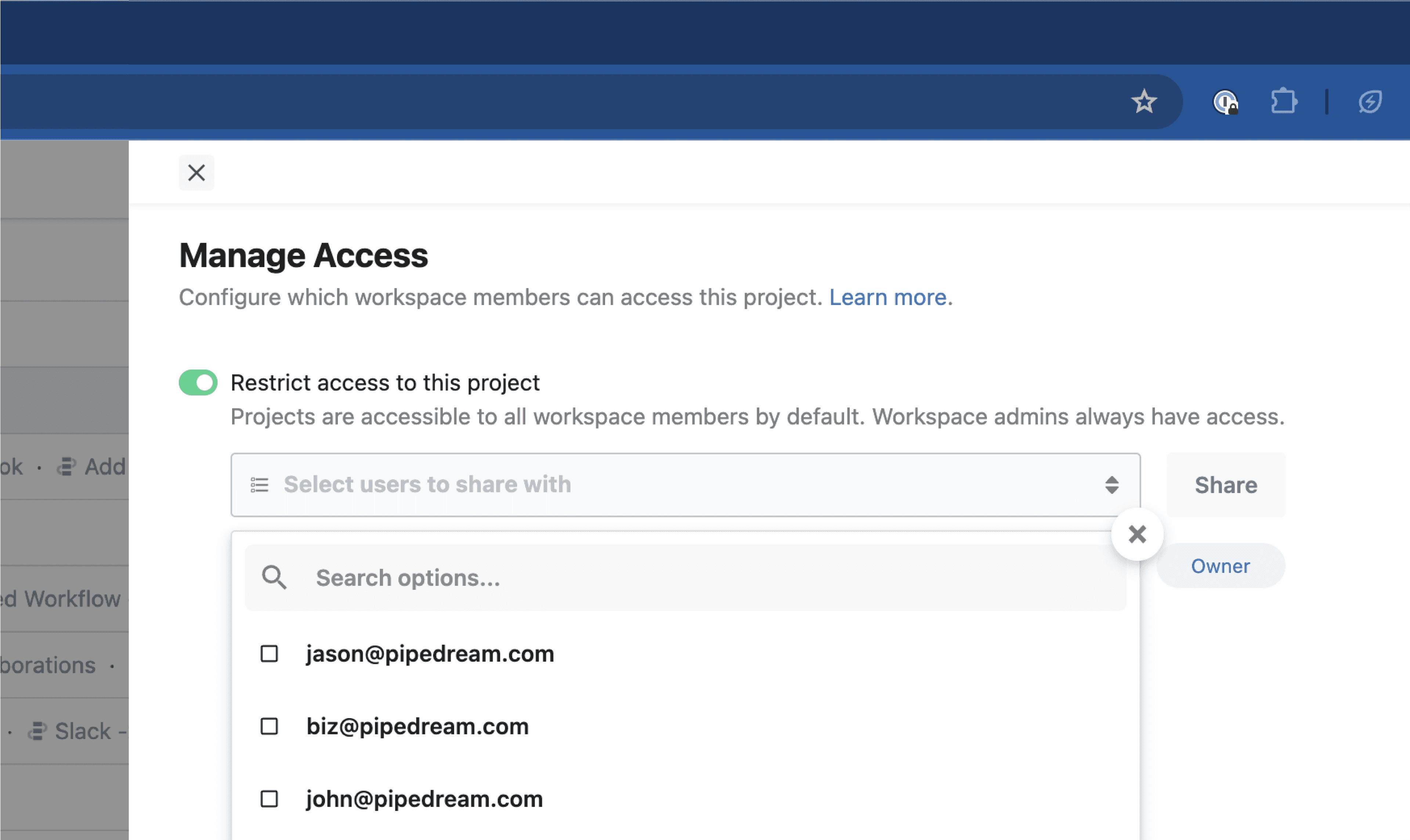 You can always see who has access and remove access if necessary: